[WIP] Work In Progress
Basic Stuff
WSTP stands for Wolfram Symbolic Transfer Protocol. It is a protocol that allows for communication between a Wolfram Language kernel and an external program. This can be used to run Mathematica code from another programming language, such as Python, C++, or Java.
Even better, you can use it to remotely execute Mathematica code on a different machine. I use it mostly to run CUDA and other ML code on a remote machine with better GPUs.
Setting Up WSTP
Firstly, you need access to a remote machine with a WSTP server running. Setting that up is beyond the scope of this quick guide, but I can help you with it if necessary.
Two useful servers here at MAGIC are: - dagmar (Stage Boxx with 2x A6000s) - mss-fxpppr-pc (personal workstation with a single A6000) - mss-fliplab-02 (GrandTheftPC with 2x A5000s)
A few notes on the servers: - dagmar needs to be booted into Linux. Since it usually runs the VP stage, this requires some manual intervention by me or MAGIC staff. If you need access, please ask me or MAGIC staff. - mss-fxpppr-pc is my personal workstation. Check with me if you need it. - mss-fliplab-02 is a shared workstation in the lab. It is usually available. It dual boots and needs to be booted into Linux to use WSTP.
Setting up the SSH Tunnel
Because we use SSH tunneling, you do not connect directly to the remote machine’s IP address. Instead, you establish a tunnel that forwards a port on your local machine to the remote server. This requires SSH to be configured on your machine. If you haven’t set up SSH keys yet, see our guide on Setting up ssh.
The port ranges are: - Mathematica 14.3: uses ports 3737 and 3738 - Mathematica 15.0: uses ports 3837 and 3838
Run one of the following commands in your local terminal to open the tunnel (replacing username with your username and remote-machine with the hostname, e.g., dagmar, mss-fxpppr-pc, or mss-fliplab-02):
For Mathematica 14.3
ssh -L 3737:localhost:3737 -L 3738:localhost:3738 username@remote-machineFor Mathematica 15.0
ssh -L 3837:localhost:3837 -L 3838:localhost:3838 username@remote-machineKeep this terminal window open while you use Mathematica; closing it will close the tunnel and disconnect your kernel.
Running in the Background
If you prefer not to keep a terminal window active, you can instruct SSH to run the tunnel in the background using the -f (request background execution) and -N (do not execute a remote command) flags:
# For Mathematica 14.3
ssh -f -N -L 3737:localhost:3737 -L 3738:localhost:3738 username@remote-machine

# For Mathematica 15.0
ssh -f -N -L 3837:localhost:3837 -L 3838:localhost:3838 username@remote-machine
To close a background tunnel later, you can find and terminate the process using kill and pgrep:
# For Mathematica 14.3
kill $(pgrep -f "ssh.*3737:localhost:3737")

# For Mathematica 15.0
kill $(pgrep -f "ssh.*3837:localhost:3837")
Running remote
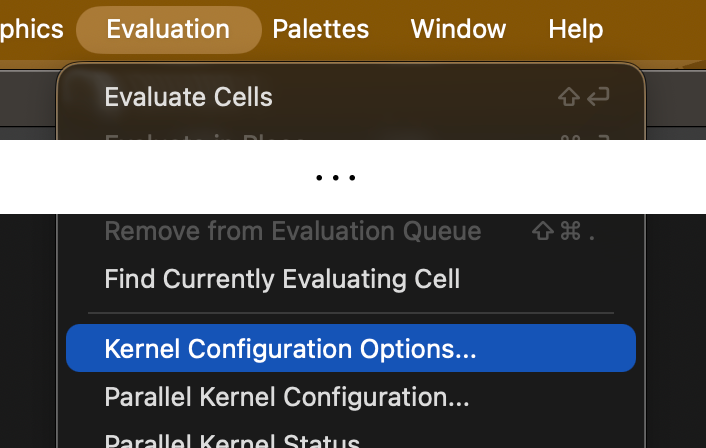
- Create a new remote kernel from Wolfram / Mathematica. You can do this from the menu:
Evaluation>Kernel Configuration Options...>Add...>Remote Machine. Then, fill in the details.
Since we are using an SSH tunnel, use localhost (or 127.0.0.1) as the host address instead of the remote IP address.
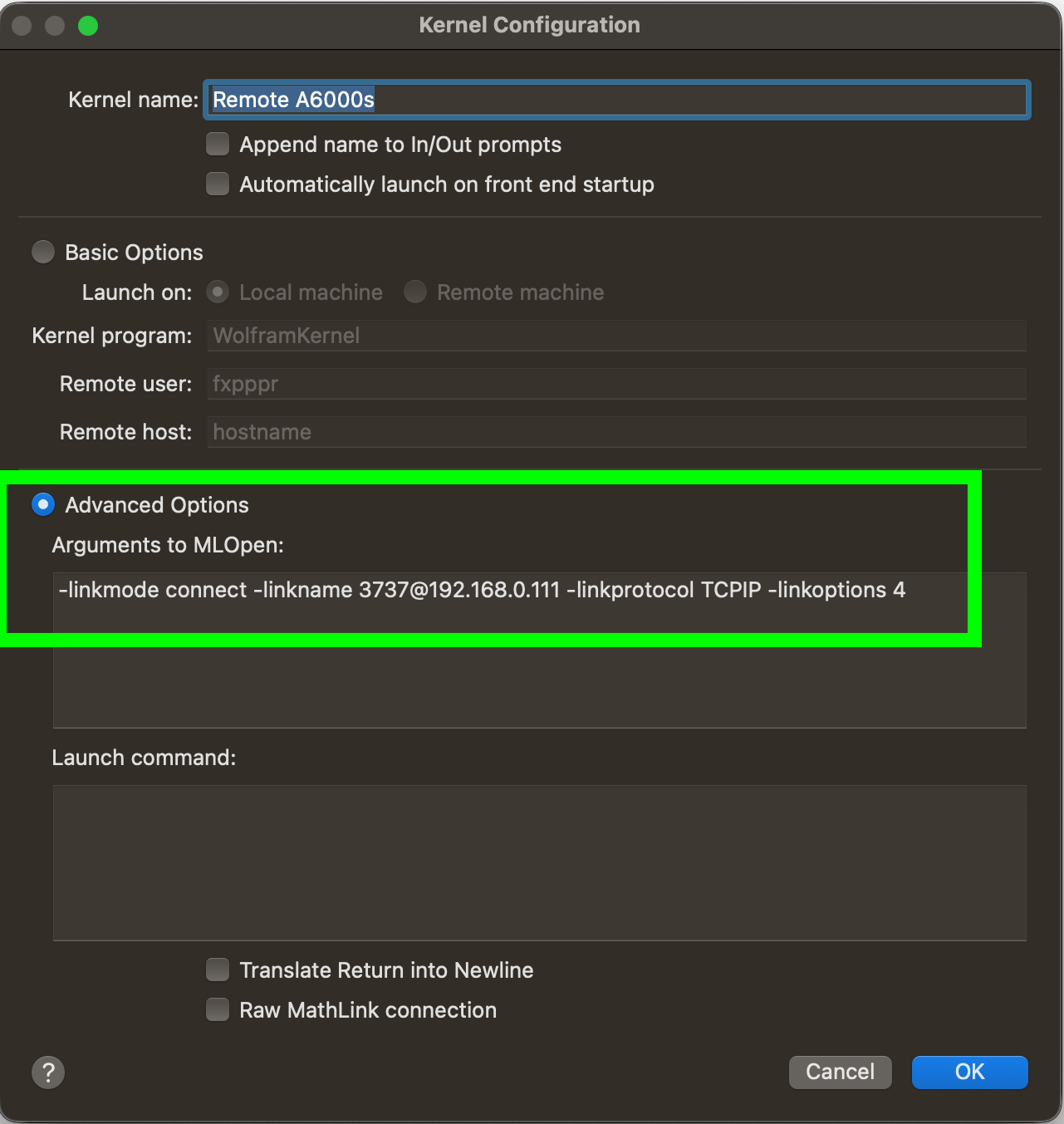
The port is the same local port you configured in your SSH tunnel.
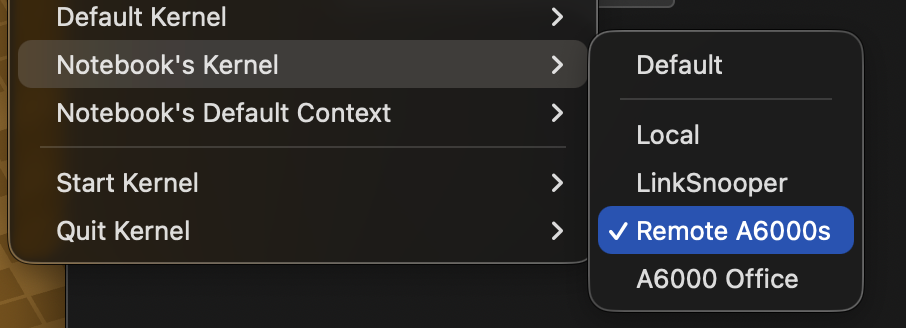
- Now, assign the kernel to the notebook. You can do this from the menu:
Evaluation>Notebook's Kernel>Remote Machine. Then, select the remote kernel you just created.
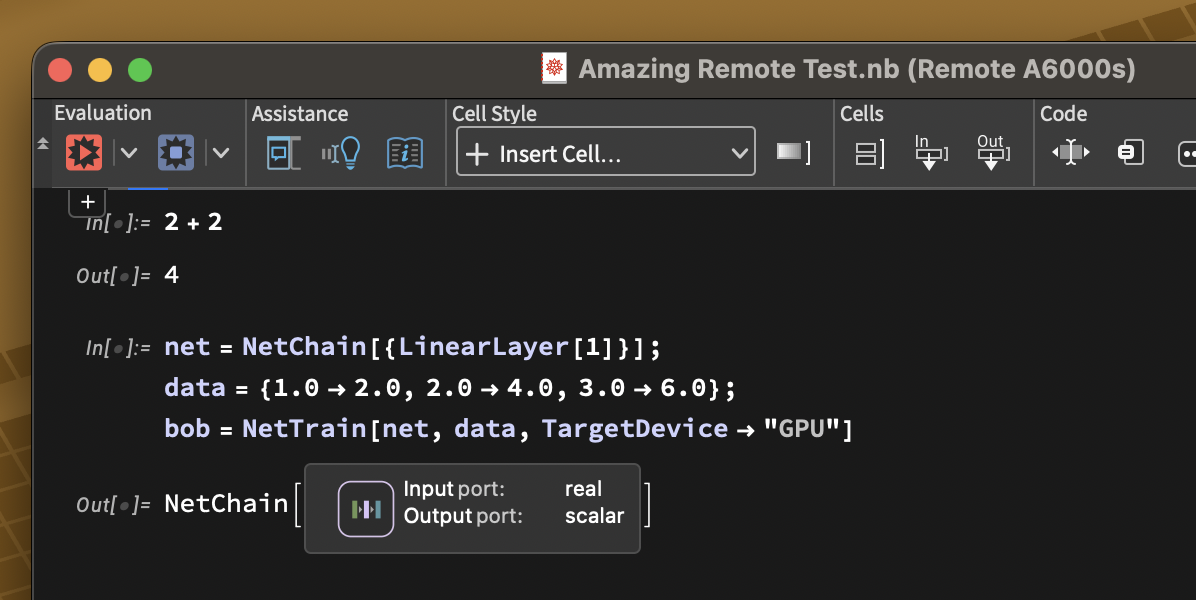
- You should be able to evaluate WL code. It might take a few seconds to get started, but, once running, it should be responsive.
Config Notes
Since we tunnel the connection, the configuration arguments in Mathematica will always point to localhost (or 127.0.0.1).
Mathematica 14.3
Using port 3737:
-linkmode connect -linkname 3737@localhost -linkprotocol TCPIP -linkoptions 4Using port 3738:
-linkmode connect -linkname 3738@localhost -linkprotocol TCPIP -linkoptions 4Mathematica 15.0
Using port 3837:
-linkmode connect -linkname 3837@localhost -linkprotocol TCPIP -linkoptions 4Using port 3838:
-linkmode connect -linkname 3838@localhost -linkprotocol TCPIP -linkoptions 4